WordPress Minification: Plugins, Setup and Best Practices
Optimize your WordPress site with JavaScript, CSS and HTML minification. Plugin comparison, configuration and tips for an ultra-fast WordPress.
Why minify on WordPress?
WordPress ships a lot of CSS and JavaScript from the theme, plugins and the admin bar. Minification is a fast win before you change hosts — but only if one plugin owns minify, you test on staging, and you do not treat FastMinify as a WordPress plugin (there isn’t one). Use the JavaScript minifier, CSS minifier and HTML minifier for child-theme snippets and custom blocks the PHP plugins never see. For the file-type deep dives, start with the JavaScript minification guide, the CSS minification guide and the HTML minification guide. Core Web Vitals context: minification and LCP/INP/CLS.
Recommended configuration workflow
Never flip every optimization toggle on production at once. Also know that some plugins read `WP_ENVIRONMENT_TYPE` and disable page cache on staging — your staging Lighthouse score can look worse than production for that reason. Re-test a production-like cache after you promote the same minify settings.
Elementor, Divi, Bricks and similar builders ship large CSS/JS. Minify helps a little; disabling unused widgets, icon fonts and “load everywhere” assets usually helps more. Above-the-fold CSS is a separate feature in WP Rocket (Optimize CSS Delivery) and LiteSpeed — walkthrough in the Critical CSS guide.
Common problems after minification
When CSS looks unstyled or a slider dies, roll back the last toggle and bisect excludes. Disable JS combine first; keep minify-only. For unreadable production JS, pretty-print in DevTools or follow debug minified JavaScript (source maps and DevTools) — then use unminify JS or beautify CSS only to inspect a copy, not as the live site.
Minification plugins compared
These products overlap. Running WP Rocket File Optimization together with Autoptimize minify and LiteSpeed Cache JS/CSS minify on the same site is a common way to double-load scripts. Choose one owner for minify (and usually for combine/defer). FastMinify is not in that list: it will not enqueue or cache WordPress assets. Hub of browser tools: minify tools.
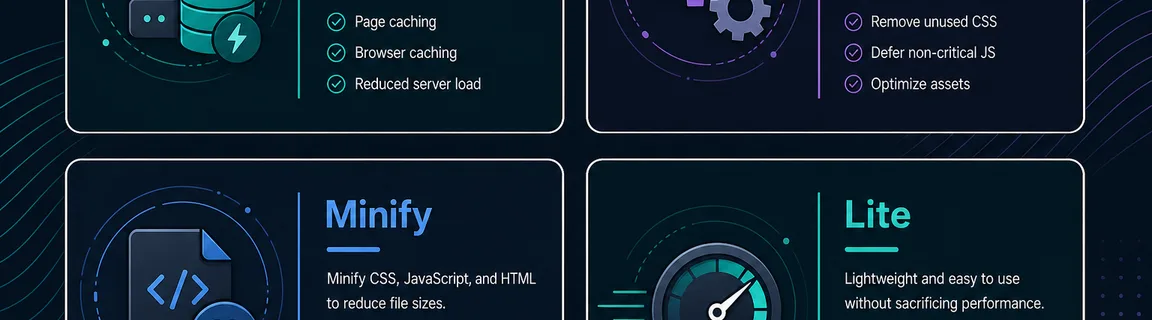
The old “JS first” shortcut breaks more sites than it saves. Minified CSS rarely kills jQuery; combined/deferred JS often does. HTTP/2 already multiplexes files — combining every script is frequently a net loss and fights plugin enqueue order. After minify, still compress at the server: GZIP and Brotli on Apache/Nginx.
Manual minification for custom assets
Plugins minify what WordPress enqueues. They typically skip raw files you drop in a child theme, a must-use plugin, or a custom block’s `view.js` until you enqueue a `.min.js`. Paste the source into FastMinify, verify the output, then commit both the original and the minified file. Same idea for CSS overrides and heavy inline landing HTML. How-to per format: JS, CSS, HTML. When to stop pasting and automate: online minifiers vs build tools.
Beyond classic WordPress PHP
Headless WordPress (Next.js, Nuxt) should minify in the Node build, not only via a PHP cache plugin that never sees the frontend bundle. Same idea as any app: minification in GitHub Actions / GitLab CI. Browser toolbox: minify hub.
Conclusion
WordPress minification is a staged workflow: one plugin stack, CSS minify before JS minify, excludes before combine, staging before production. FastMinify stays the browser toolbox for custom JS, CSS and HTML — not a competitor to WP Rocket. Keep the CSS guide and JavaScript guide open when you minify files the plugins never enqueue.
Minify custom WordPress assets in the browser
Related Articles

Format a Copy as cURL, parse a raw HTTP request or response and read a HAR export in your browser: nothing is sent, nothing is replayed.

Decode a JWT header and payload, or sign a test token, right in your browser: HS256, RS256, ES256, with no secret sent to a third-party server.

Length, entropy, symbols: generate a strong password in your browser with Web Crypto, no network transit, and know what the tool does not guarantee.