Cron Expressions: Read the Syntax and Calculate the Next Runs
Read a cron expression field by field, check its next runs in UTC or local time and avoid traps with steps, time zones and dialects, all in your browser.
A cron expression is read field by field and checked against dates
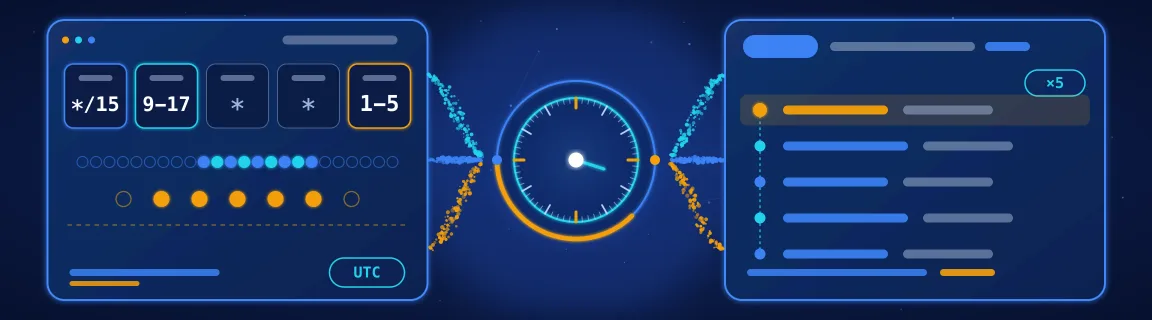
A line like */15 9-17 * * 1-5 drives a backup, a CI workflow or a Kubernetes CronJob. It is short, and few people reread it. Misread one field and the job runs at the wrong hour, twice, or never. The cron parser takes five fields (minute, hour, day of month, month, day of week) or six, with seconds first. It also takes aliases such as @daily and @hourly. It shows a sentence that sums up the schedule and the value of each field. It also lists the next 5, 10 or 25 runs, in UTC or in your browser's time zone. The calculation happens in your tab and the expression is sent to no one. This guide covers the syntax and the aliases, then shows how to read the result. Next come the traps that cost the most. A step does not line up, two day fields combine as an OR, a date does not exist, and the time zone and the clock change of 25 October 2026 move everything. It then compares the dialects of crontab, Kubernetes, GitHub Actions and AWS EventBridge, and redoes the calculations in code. Related tools are listed in the developer utilities hub.
What the parser is for, and where it stops
The parser answers one question: at which moments does this expression fire? Use it to check that before you deploy.
The parser calculates dates. The rest of the chain is checked somewhere else.
Reading the results without mistakes
Enter the expression in the cron parser. The dates below start from Friday 16 October 2026 at 12:00 UTC. The tool starts from the present moment, so your dates will be different.
A step is calculated inside the range of the field. At the start of each range the counter goes back to zero.
When both fields are set, cron does not combine them with AND. It runs the job when either one matches, according to the crontab manual page. The tool flags it with a note under the summary sentence.
A valid expression can fail to fire at all. The tool searches about two years ahead and tells you.
Four mistakes you only see in production
The parser always calculates in UTC. The Local option only changes how the dates it found are written. 0 9 * * * gives 09:00 UTC, which the tool writes as 11:00 in a browser set to Paris on 16 October 2026. A cron started on a server set to Paris fires at 09:00 Paris time, which is 07:00 UTC until 24 October and 08:00 UTC after that. Which zone applies depends on the system that runs the job. The cron daemon follows the time zone of the machine. A Kubernetes CronJob follows the one of the kube-controller-manager, unless .spec.timeZone is set. GitHub Actions counts in UTC by default.
Europe goes back to winter time on Sunday 25 October 2026. At 03:00 on the old clock, it is 02:00 again. The United States changes a week later, on 1 November. A job set to 30 2 * * * then meets an hour that exists twice when the clocks go back, or not at all when they go forward. Implementations disagree. The Debian manual page for cron(8) says jobs in the skipped hour run soon after the change, and jobs in the repeated hour are not run again. The crontab(5) page published on man7.org says the opposite. A time that does not exist never matches, and a repeated time fires twice. GitHub Actions, with the timezone key, moves a run that falls in the skipped hour to the next valid time.
The same schedule is written differently depending on the tool. AWS EventBridge adds a year field and requires a ? in one of the two fields that hold a day. Quartz and Spring put seconds first. The parser rejects what it does not know and names the field and the token at fault, for example "Invalid value in Day of month (?)".
A correct expression guarantees neither that the job starts, nor that it starts once. The Kubernetes documentation warns that Job creation is approximate: two Jobs may be created, or none, so jobs must be idempotent. The default concurrency policy is Allow, which lets a run start while the previous one is still going. If the controller counts more than 100 missed starts, it stops starting the job and logs an error. GitHub Actions delays scheduled runs at times of high load, especially at the start of every hour, and may drop some. In a public repository, scheduled workflows are disabled after 60 days without activity.
Fields, aliases and dialects at a glance
Every field takes the same operators. Only the bounds change.
An alias replaces the whole expression. The parser expands them in the input box.
Before you copy an expression, check what the target understands.
The cron parser, step by step
The cron parser analyses as you type, after a short pause. The Parse button, or the Enter key in the field, runs the calculation without waiting.
Type or pick a preset
Six presets fill the field: every 5 minutes, every 15 minutes, every hour, every day at midnight, weekdays at 09:00 and the 1st of every month. An alias such as @daily is replaced by its five-field form.
Read the sentence
For simple schedules, a sentence sums up the expression: every minute, every N minutes, every hour, every day at a given time, Monday to Friday, day N of every month, once a year. If not, the tool shows "Schedule breakdown" and leaves you to read the fields.
Check the boxes
Each box carries the name of a field and its value. A note appears when day of month and day of week are both set, as a reminder that either one is enough.
Read the next runs
The list gives the full dates, with a "Next" line that gives the delay before the first one. A warning appears if no date exists or if the search stops before it finds enough.
Three settings under the input field change what the tool calculates or shows.
Five or six fields
Five fields is the default. Switching to six adds 0 at the start of the expression, so seconds at zero. Switching back to five removes that zero, and the tool refuses while the seconds are anything other than 0.
Runs to show
Choose 5, 10 or 25. Take 25 to see the pattern of a step, a month end or two day fields combined.
Time zone
UTC is the default. Local uses the time zone of your browser. A badge above the sentence reminds you of the choice. The calculation stays in UTC either way: only the way the dates are written changes.
Copy
Copy description takes the sentence, Copy all takes the list, and each line has its own Copy button.
When the expression is rejected, the tool says why and calculates nothing.
Empty expression
A field emptied after typing shows "Enter a cron expression".
Wrong number of fields
"Invalid cron expression for the selected field count" points to four fields, or six while the setting is on five. Change the setting or fix the tokens.
Invalid value
A message such as "Invalid value in Hour (22-2)" names the field and the token at fault, and the box of that field is highlighted.
Unsupported alias
@reboot and any alias outside the list give a message that recalls the ones the tool accepts.
The same schedules in a crontab, Kubernetes, GitHub Actions and Node
The line goes in crontab -e. The command takes the rest of the line: an unprotected % becomes a newline there, hence the \% in the example (see the crontab manual page). Cron does not run your login profile, so give the full path of the programs.
Basic example
The time zone is declared in .spec.timeZone, never in schedule. Check the manifest with the Kubernetes validator before you apply it.
Basic example
The workflow only fires if it exists on the default branch. The GitHub Actions validator checks the file, and the cron parser checks the dates.
Basic example
To calculate the next runs in a time zone, as a real cron does, pass the tz option. The example uses version 5 of the library. It shows the gap with the FastMinify parser, which calculates in UTC: the same line gives 07:00 UTC before 25 October 2026 and 08:00 UTC after it, for a Paris hour.
Basic example
Conclusion
A cron expression fits in five fields, and almost every error comes from what you cannot see in it. A step restarts from zero, two day fields combine as an OR, a date does not exist, and a time zone or a clock change moves everything. The cron parser puts dates next to the line, so you can spot these cases before deployment. It calculates in UTC, starts no job and only knows the five or six fields and the common aliases. The target matters as much as the expression, because crontab, Kubernetes, GitHub Actions, EventBridge and Quartz do not read the same syntax. Keep jobs that are safe to run again and watch their last success. The developer utilities hub lists the related tools.
Parse a cron expression in your browser
Related Articles

Compute network, mask, host range and broadcast of a CIDR, summarize ranges into minimal blocks and check an IP, all in your browser. Nothing is uploaded.

Format a Copy as cURL, parse a raw HTTP request or response and read a HAR export in your browser: nothing is sent, nothing is replayed.

Decode a JWT header and payload, or sign a test token, right in your browser: HS256, RS256, ES256, with no secret sent to a third-party server.